Active Directory sign-in
Built and verified end to end 2026-09-24 against a real domain controller: LDAPS with an internal CA, group-to-role mapping, nested groups, both login forms, a user removed from a group, and a domain controller that could not be reached.
Available from Ballast 1.0.1. Ballast 1.0.0 signs in with local accounts only.
Operators can sign in to the Ballast console with their Active Directory account instead of a separate Ballast password. Ballast looks the person up, checks which of your groups they are in, and gives them the role of the most privileged one. Nobody has to create or delete operator accounts by hand when people join or leave.
This is included in every tier, including the free Community tier. It is not licence-gated. The Commercial tier's separate "SSO and SAML" line is a different feature (an external identity provider), and it is not available yet. Active Directory sign-in over LDAPS does not need it.
What it does and does not touch
Directory sign-in decides who may sign in to the console and the REST API. That is all.
- Agents are not affected. Each agent keeps its own certificate identity and carries on enforcing its last-honoured desired state whether or not a domain controller, or the centre itself, is reachable. Turning this on, off, or losing the directory never changes what a host does.
- The VM and host consoles are not affected. They still use the credential configured for them, not the operator's directory account.
- Ballast never stores an operator's directory password. It is used once, to prove who the person is, and discarded.
How sign-in works
| Step | What happens |
|---|---|
| 1 | The name typed is checked against the local accounts first. If a local account has that name, it signs in locally and the directory is never asked. |
| 2 | Otherwise, if the directory is enabled, Ballast looks the user up and checks the password against the domain controller. |
| 3 | It checks the user's groups against your mapping. A user in groups for more than one role gets the most privileged. Nested groups count. |
| 4 | A user in none of the mapped groups cannot sign in, and is told why. They are never given a read-only role by default. |
Both user@example.com and EXAMPLE\user work at the sign-in box. Whichever is
typed, the account is stored and shown as the user's user@example.com form, so
one person is one identity in the audit trail.
Because the local account is tried first and never falls through to the directory, a wrong local password is a plain refusal. That is deliberate: which account a name refers to must not depend on which system happens to answer.
The local account is your break-glass login
Domain controllers are very often virtual machines on the very cluster you are trying to repair. A console that needed a reachable domain controller would fail at exactly the moment it is needed. So a local administrator is a permanent requirement, not a legacy path:
- Ballast refuses to turn directory sign-in on unless a local administrator exists.
- With the directory unreachable, directory users are told to use a local account, and local accounts carry on working.
Before you start
- A domain controller the centre can reach on port 636 (LDAPS) by its DNS name, with a certificate the centre can trust. If your domain controllers do not offer LDAPS yet, or you are not sure, start with LDAPS on a domain controller.
- The centre must be able to resolve that DNS name.
- A local administrator account on the centre (the one you created at first sign-in is fine).
- Rights in Active Directory to create a user and groups.
1. Create a read-only service account
Ballast uses one service account to look people up and to check group membership. It never needs to change anything, so give it nothing beyond an ordinary domain user. By default any authenticated user can read users and groups in Active Directory, so no delegation is needed.
Use a dedicated account. Do not reuse the account the Ballast agent runs as: that one carries delegated rights over your hosts' OU that a directory lookup does not need.
New-ADUser -Name "svc-ballast-ldap" -SamAccountName "svc-ballast-ldap" `
  -UserPrincipalName "svc-ballast-ldap@ballast.local" `
  -Path "OU=Service Accounts,DC=ballast,DC=local" `
  -AccountPassword (Read-Host -AsSecureString "Password") `
  -Enabled $true -PasswordNeverExpires $true -CannotChangePassword $true

(Get-ADUser "svc-ballast-ldap").DistinguishedName
The last line prints the account's distinguished name. You will paste it into Ballast as the Bind account. Use your own domain and OU throughout.
If your directory has been hardened so that ordinary users cannot read other users or groups, grant this account read access to the user and group objects Ballast will look up.
2. Create the groups
One group per role you want to use. The names are yours. Only the groups you map give access, and you do not have to use all three.
New-ADGroup -Name "BallastAdmins"    -GroupScope Global -GroupCategory Security -Path "OU=BallastGroups,DC=ballast,DC=local"
New-ADGroup -Name "BallastOperators" -GroupScope Global -GroupCategory Security -Path "OU=BallastGroups,DC=ballast,DC=local"
New-ADGroup -Name "BallastReaders"   -GroupScope Global -GroupCategory Security -Path "OU=BallastGroups,DC=ballast,DC=local"

Add-ADGroupMember -Identity "BallastAdmins" -Members "jane.smith"

(Get-ADGroup "BallastAdmins").DistinguishedName
Print each group's distinguished name the same way. You will paste those in too.
| Role | What it can do |
|---|---|
| Administrator | Everything, including accounts, centre settings and the credential vault. |
| Operator | Fabric and VM operations, but not accounts, centre settings or the credential vault. |
| Read-only | View everything, change nothing, and no interactive console. |
A few things worth knowing:
- Nested groups work. Put a group inside
BallastOperatorsand its members get the operator role. - Do not map Domain Users. It is every account's primary group, which Active Directory does not list as a membership, so mapping it matches nobody. Create a dedicated group instead.
- Keep the administrator group small. Anyone in it can do everything.
3. Get the domain controller's certificate trusted
Ballast talks to the domain controller over LDAPS so that the password is encrypted. Plain LDAP is refused, because the operator's password would cross the network in the clear.
The centre has to trust the certificate authority that issued the domain
controller's certificate. A domain that runs its own CA usually needs you to hand
that CA's certificate to the centre once. The full walk-through, including how to
turn LDAPS on if the domain controller does not have it, is on
LDAPS on a domain controller.
When you are done you should have the issuing CA's certificate as a text block
that starts with -----BEGIN CERTIFICATE-----.
4. Configure it in Ballast
Open Settings, Authentication. The Active Directory panel is below the inactivity timeout.
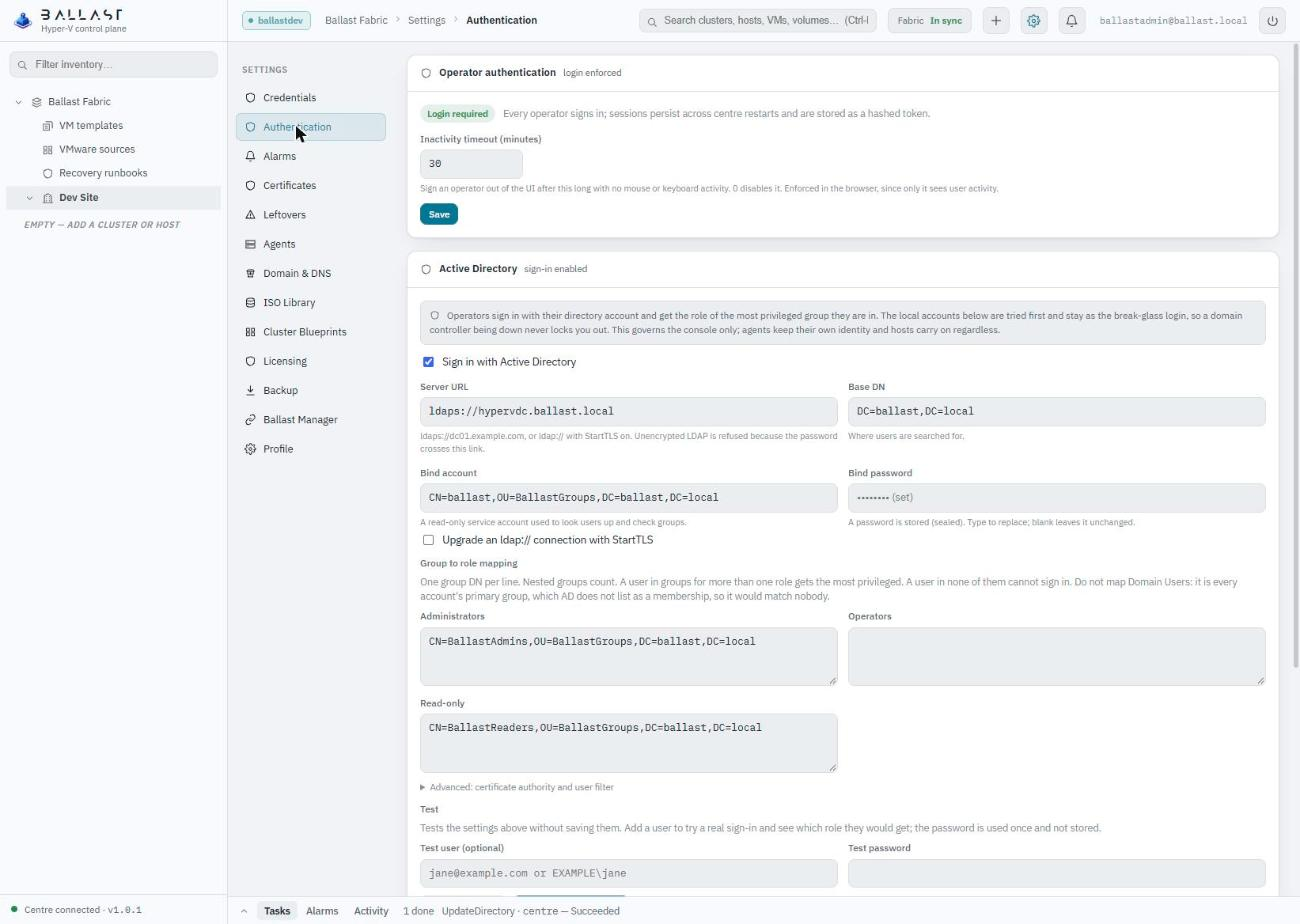
| Field | What to enter |
|---|---|
| Server URL | ldaps:// and the domain controller's DNS name, for example ldaps://hypervdc.ballast.local. Use the name, not an IP address: the certificate is issued to a name. |
| Base DN | Where users are searched for. The domain root, for example DC=ballast,DC=local, is usual. |
| Bind account | The service account's distinguished name from step 1. |
| Bind password | Its password. It is stored sealed in the credential vault and never shown again. Leave it blank on later edits to keep the stored one. |
| Administrators / Operators / Read-only | One group distinguished name per line, from step 2. |
| Upgrade an ldap:// connection with StartTLS | Only if you use ldap:// on port 389 instead of ldaps://. |
Under Advanced: certificate authority and user filter:
- CA certificate (PEM): paste the issuing CA's certificate from step 3. Leave it blank only if the domain controller's certificate already chains to a public authority the centre's system trusts, which is rare for a domain controller.
- User filter: leave blank. The default finds a person by user principal name
or by
sAMAccountName.
5. Test before you save
Test connection checks everything above without saving it.
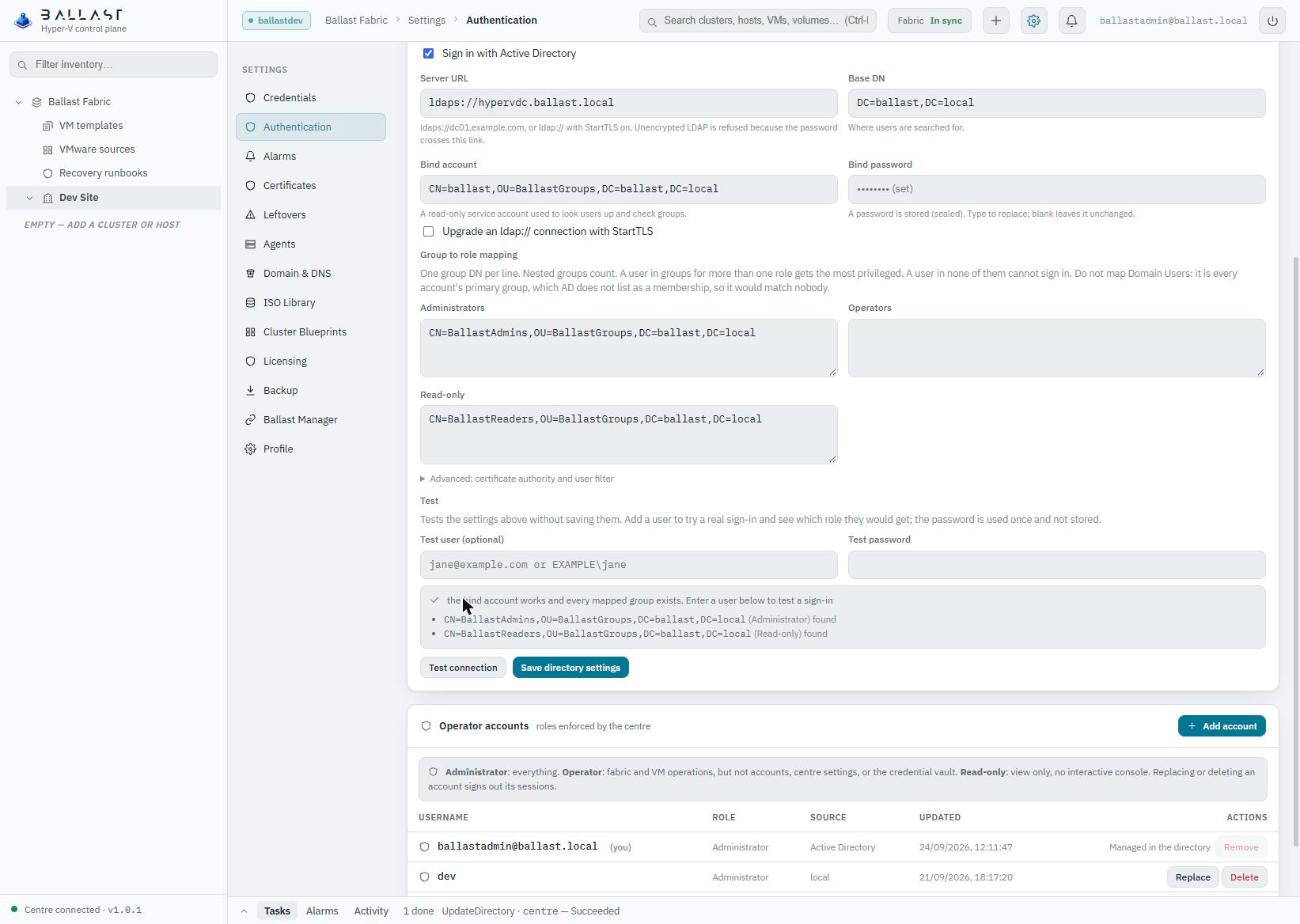
It binds the service account, then confirms each mapped group exists. A mistyped group name would otherwise show up later as "nobody is a member", which looks like a permissions problem when it is a typo, so the test names the group it could not find.
To try a real sign-in, enter a test user and password first. The test tells you which role that person would get. The password is used once and is not stored.
6. Turn it on
Tick Sign in with Active Directory and Save directory settings. If Ballast refuses, it names the reason. The usual one is that no local administrator exists yet.
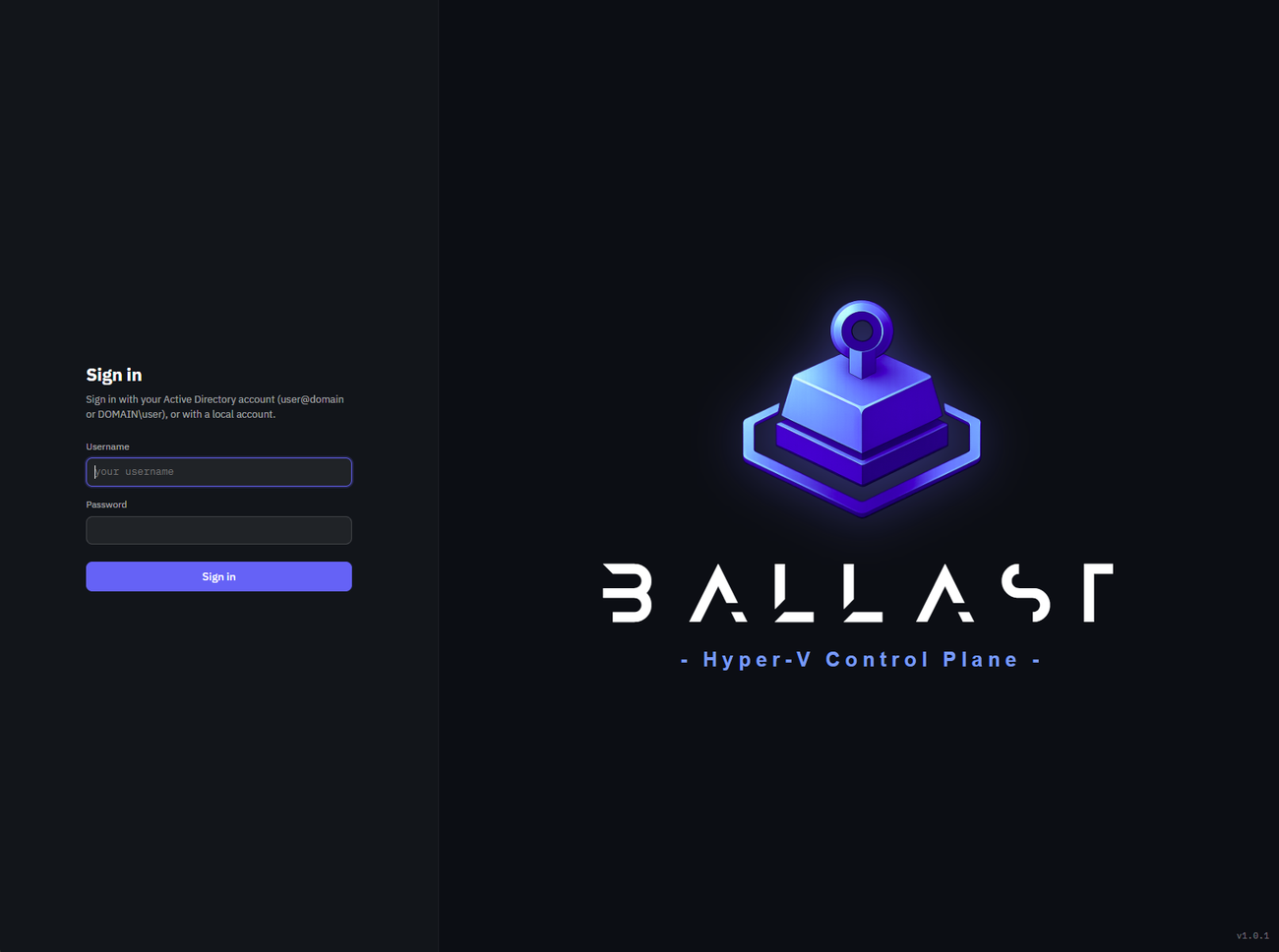
From now on the sign-in screen says a directory account works, and that a local account does too. Sign in as a member of one of your groups to confirm.
Signed-in directory users appear under Operator accounts with the source Active Directory.
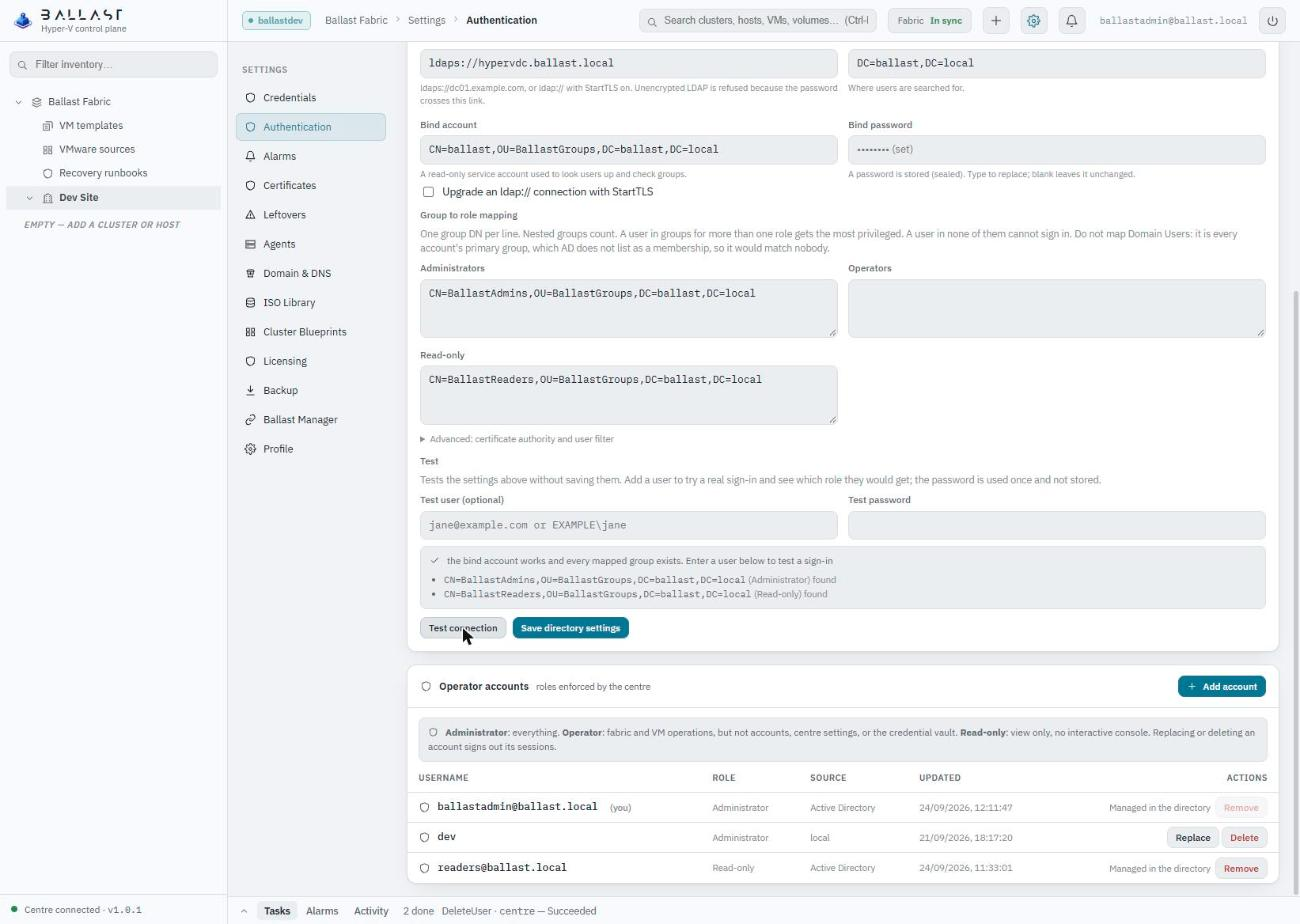
A directory account cannot be edited from here, because its password and its role belong to Active Directory. Change the role by changing the person's group, or the group mapping. Remove deletes Ballast's record and signs the person out; they can sign in again while they are still in a mapped group.
What happens afterwards
Ballast checks the directory on every sign-in, and re-checks every directory user every 15 minutes while they are signed in.
| Change in Active Directory | Effect in Ballast |
|---|---|
| The person is removed from every mapped group | Their session ends and their record is removed. If they try to sign in with their correct password, that happens at once. Otherwise it happens within 15 minutes. |
| The account is disabled or deleted | Their session ends and their record is removed within 15 minutes. Active Directory rejects a disabled account's password outright, so Ballast sees that as a wrong password, which never ends anyone's session. |
| They are moved to a group for a different role | Their session ends and they get the new role when they sign in again. |
| The account is unaffected | Nothing changes. |
| The domain controller cannot be reached | Nobody is signed out. Sessions already open keep working. New directory sign-ins are refused with a message pointing at a local account; local accounts are unaffected. |
The last row is deliberate. A domain controller being down is exactly when operators are needed, so "the directory did not answer" is never treated as "the answer is no". Only a definite answer from the directory ends a session.
Turning directory sign-in off signs its users out at the next check and leaves the local accounts as they are.
Limits to know about
- One directory, one server. Ballast talks to the single domain controller named in the Server URL. There is no failover between domain controllers. If it is down, use a local account. Its certificate must name the host you put in the URL.
- One domain. Multiple domains and forests are not supported.
- No throttling. Each sign-in attempt is a real sign-in against Active Directory, so repeated wrong passwords count towards the account's normal lockout policy.
- The console and REST API only. See the top of this page.
Troubleshooting
Directory failures name the cause and the fix. The common ones:
| You see | What it means | What to do |
|---|---|---|
| The directory server's certificate is signed by an authority the centre does not trust | The centre reached the domain controller but does not trust the CA that issued its certificate. | Paste the issuing CA's certificate into CA certificate (PEM). See LDAPS on a domain controller. |
| The certificate does not name the host in the URL | The certificate was issued to a different name than the one in the Server URL. | Use the domain controller's DNS name from its certificate, not an IP address or an alias. |
| The name does not resolve from the centre | The centre cannot look up the DNS name. | Fix DNS on the centre, or use a name it can resolve. |
| Could not reach the directory | Nothing is answering on that address and port. | Check the address, that port 636 is open from the centre, and that LDAPS is enabled on the domain controller. |
| The directory refused the bind account | The service account's DN or password is wrong, or the account is locked or expired. | Recheck the distinguished name and password. |
| The bind account works, but the group ... was not found | A mapped group's name is mistyped. | Copy the distinguished name from Get-ADGroup. |
| The base DN does not exist in the directory | The Base DN is wrong. | Check it against the domain, for example DC=ballast,DC=local. |
| ldap:// sends the operator's password unencrypted | Plain LDAP is not allowed. | Use ldaps://, or keep ldap:// and tick StartTLS. |
| Map at least one group to a role | No groups are mapped. | Add at least one group. |
| Keep at least one local administrator before enabling the directory | There is no local administrator to fall back on. | Create one under Operator accounts. |
| Invalid username or password | The name or password is wrong, or the account is disabled. Ballast deliberately does not say which, so a stranger cannot learn which names exist. | Check the name and password, and the account in Active Directory. |
| Signed in to the directory, but this account is not in any group mapped to a Ballast role | The password was right, but the person is in none of the mapped groups. | Add them to a mapped group. |
| The directory could not be reached to check this sign-in | The domain controller is down or unreachable. | Sign in with a local account, then fix the connection. |