Microsoft Entra ID sign-in
Built and verified 2026-11-07 against a real Entra ID tenant: an app registration with the three Ballast app roles, a user assigned directly to a role, every line of the configuration test, a full sign-in with Microsoft, a sign-in refused once the role was removed, and an open session signed out by the 15-minute re-check.
Available from Ballast 1.0.3. Ballast 1.0.2 and earlier sign in with local accounts and Active Directory only.
Operators can sign in to the Ballast console with their Microsoft work account. Ballast sends them to Microsoft to sign in, so their password, multi-factor prompt and any Conditional Access policy are all handled by Entra ID. Ballast never sees the password. Who gets which role is decided by app roles you assign in Entra, so nobody has to create or delete operator accounts in Ballast by hand.
This is included in every tier, including the free Community tier. It is not licence-gated.
What it does and does not touch
Entra ID sign-in decides who may sign in to the console and the REST API. That is all.
- Agents are not affected. Each agent keeps its own certificate identity and carries on enforcing its last-honoured desired state whether or not Microsoft, or the centre itself, is reachable. Turning this on, off, or losing the internet never changes what a host does.
- The VM and host consoles are not affected. They still use the credential configured for them, not the operator's Microsoft account.
- Hosts are not joined to Entra ID. This is the console's sign-in only.
How sign-in works
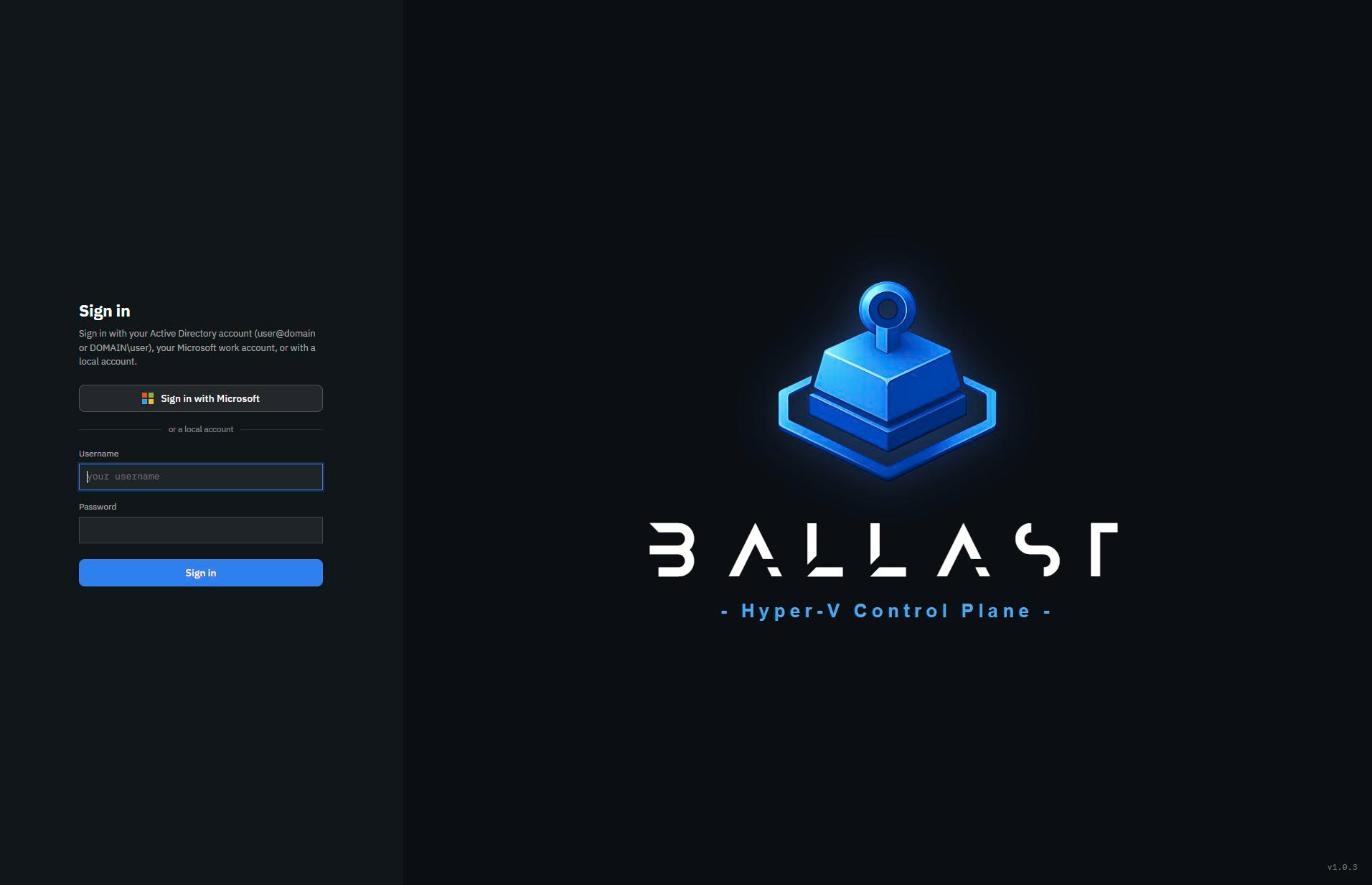
The sign-in screen gains a Sign in with Microsoft button above the username and password fields.
| Step | What happens |
|---|---|
| 1 | The browser goes to Microsoft's sign-in page for your tenant. Entra ID handles the password, multi-factor and Conditional Access. |
| 2 | Microsoft sends the browser back to Ballast with a one-time code. The centre exchanges it and checks the signed ID token: that it came from your tenant, for your app registration, for this sign-in, and has not expired. |
| 3 | Ballast reads the app roles in the token. A person holding more than one gets the most privileged. |
| 4 | A person holding no Ballast role cannot sign in, and is told who can fix that. They are never given a read-only role by default. |
The account is stored and shown under the name Entra ID gives it, usually the
person's user@example.com. Ballast also keeps the account's object ID, so a
renamed account is still recognised as the same person.
The local account is your break-glass login
The centre needs internet access to reach Microsoft. A console that could only be opened through Microsoft would fail exactly when the centre's network is the thing being repaired. So a local administrator is a permanent requirement:
- Ballast refuses to turn Entra ID sign-in on unless a local administrator exists.
- The username and password fields stay on the sign-in screen. Local accounts are never sent to Microsoft and keep working with the centre offline.
- An Entra ID account can never take over a local account's name. If the names collide, the Entra sign-in is refused.
Before you start
- The centre can reach
login.microsoftonline.comandgraph.microsoft.comover HTTPS. - Operators reach the centre over HTTPS by a fixed name, for example
https://ballast.example.com. Entra ID only accepts anhttpredirect forlocalhost. - A local administrator account on the centre.
- In Entra ID, rights to create an app registration and grant admin consent (Application Administrator or Global Administrator).
1. Register the application
In the Microsoft Entra admin centre, open Entra ID, App registrations, New registration.
| Field | What to enter |
|---|---|
| Name | Anything you will recognise, for example Ballast. |
| Supported account types | Single tenant only. Ballast refuses a multi-tenant authority. |
| Redirect URI | Platform Web, and the centre's address followed by /api/v1/auth/oidc/callback, for example https://ballast.example.com/api/v1/auth/oidc/callback. It must match exactly. |
Select Register. From the app's Overview page, note the Application (client) ID and the Directory (tenant) ID. You will paste both into Ballast.
2. Create the app roles
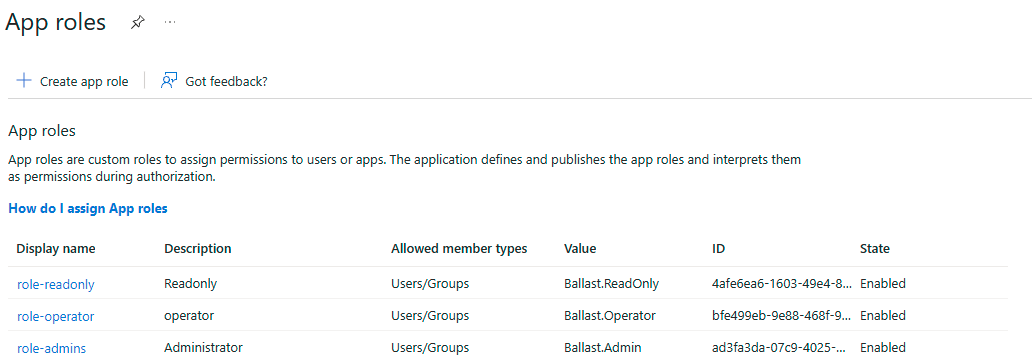
Open App roles, Create app role and create one role per Ballast role you want to use. For each, set Allowed member types to Users/Groups and leave it enabled. The display name and description are yours. The Value must be exactly:
| Value | Ballast role | What it can do |
|---|---|---|
Ballast.Admin | Administrator | Everything, including accounts, centre settings and the credential vault. |
Ballast.Operator | Operator | Fabric and VM operations, but not accounts, centre settings or the credential vault. |
Ballast.ReadOnly | Read-only | View everything, change nothing, and no interactive console. |
3. Create a client secret
Open Certificates & secrets, Client secrets, New client secret. Copy the Value column straight away: Entra ID shows it only once. The Secret ID column is not the secret.
Client secrets expire. Note the expiry date and replace the secret in Ballast before then. An expired secret stops new sign-ins, and Ballast's configuration test says so in those words.
4. Grant the Graph permissions
Ballast re-checks signed-in users every 15 minutes (see What happens afterwards). To do that it reads Microsoft Graph as the application itself, so it needs three read-only application permissions.
Open API permissions, Add a permission, Microsoft Graph, Application permissions and add:
| Permission | Why |
|---|---|
User.Read.All | Whether the account still exists and is enabled. |
Application.Read.All | The app's roles, and who holds them. |
GroupMember.Read.All | Which groups a person is in, for roles assigned to a group. |
Then select Grant admin consent for your directory. Each permission's status should read Granted.
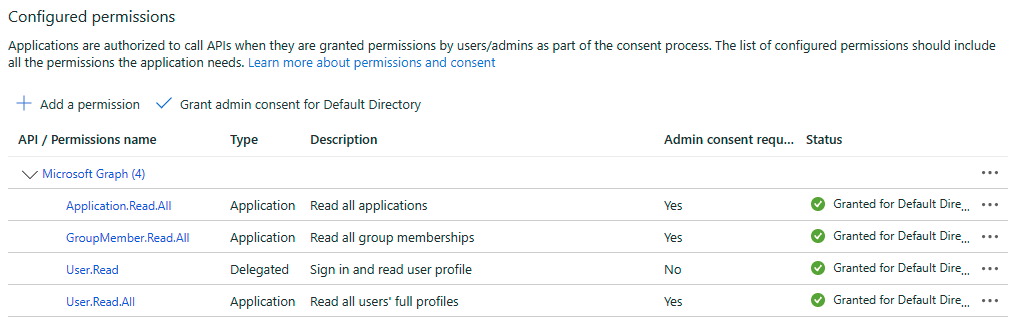
User.Read (delegated) is added by Entra ID to every new registration. Ballast
does not use it, and it does no harm. Directory.Read.All on its own also covers all three,
if your organisation prefers granting one permission.
5. Assign people to roles
Open Entra ID, Enterprise applications, then your app, then Users and groups, Add user/group. Pick a user and a role, and assign.
- Assigning a group needs Entra ID P1 or above. On the free tier of Entra ID you can only assign individual users.
- A role assigned to a group reaches the group's direct members only. Entra ID does not pass app roles through nested groups.
- A person listed with Default Access holds no Ballast role and cannot sign in. The owner who created the app is often listed this way.
6. Configure it in Ballast
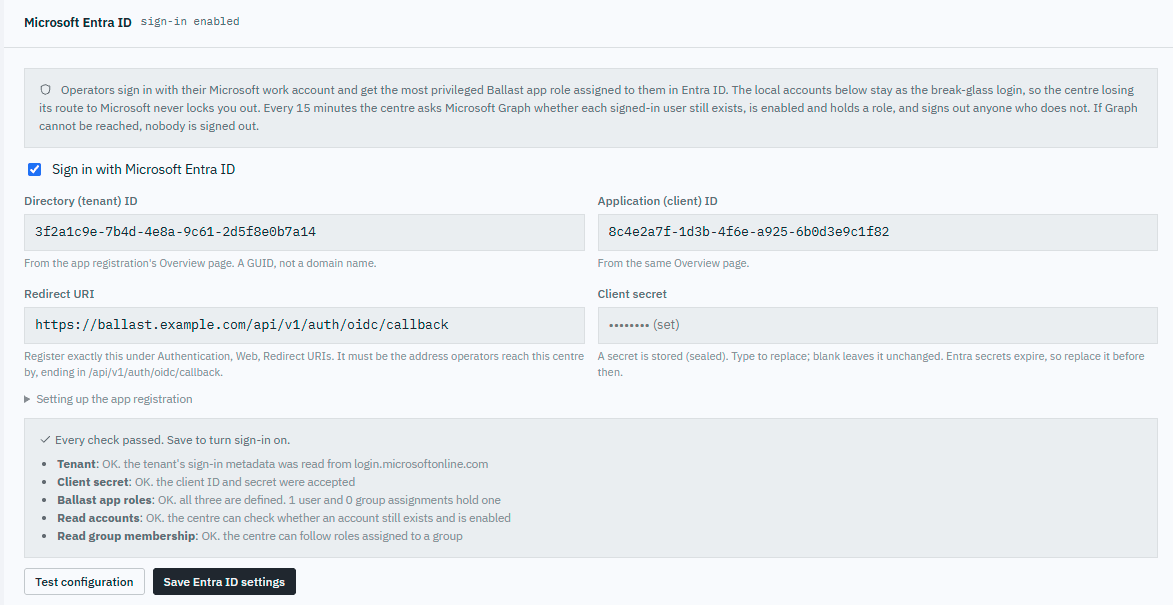
Open Settings, Authentication. The Microsoft Entra ID panel is below Active Directory.
| Field | What to enter |
|---|---|
| Directory (tenant) ID | From the app's Overview page. A GUID, not a domain name. |
| Application (client) ID | From the same page. |
| Redirect URI | Filled in with the address you have the console open at. It must match the redirect URI registered in step 1 exactly. Change it if operators reach the centre by another name. |
| Client secret | The Value from step 3. It is stored sealed in the credential vault and never shown again. Leave it blank on later edits to keep the stored one. |
The panel's Setting up the app registration section repeats steps 1 to 5 in short form.
7. Test before you turn it on
Test configuration checks everything without saving it, and reports every step on its own line so you see everything that is wrong at once:
| Check | What it proves |
|---|---|
| Tenant | The centre reached Microsoft and the tenant ID exists. |
| Client secret | Entra ID accepted the client ID and secret. |
| Ballast app roles | The three roles are defined on the app registration, and how many users and groups hold one. |
| Read accounts | The User.Read.All permission is granted. |
| Read group membership | The GroupMember.Read.All permission is granted. |
A failed line names the permission or setting to fix.
8. Turn it on
Tick Sign in with Microsoft Entra ID and Save Entra ID settings. If Ballast refuses, it names the reason; the usual one is that no local administrator exists yet.
The sign-in screen now offers Sign in with Microsoft, with the local account fields below it. Sign out and sign in with Microsoft to confirm.
Signed-in Entra ID users appear under Operator accounts with the source Entra ID, marked Managed in Entra ID.
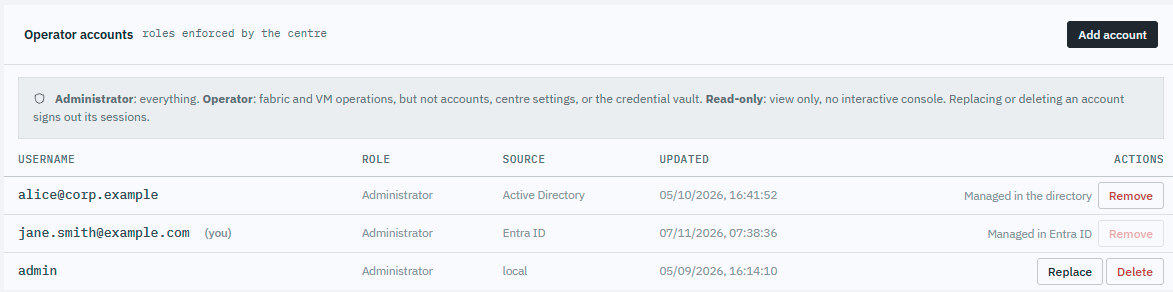 Their role cannot be edited in
Ballast, because it belongs to the app role assignment in Entra. Remove
deletes Ballast's record and signs the person out; they can sign in again while
they still hold a role.
What happens afterwards
Ballast checks the token's roles on every sign-in, and asks Microsoft Graph about every signed-in Entra ID user every 15 minutes.
| Change in Entra ID | Effect in Ballast |
|---|---|
| The person's role assignment is removed | Their session ends and their record is removed within 15 minutes. |
| The account is disabled or deleted | The same, within 15 minutes. Entra ID also refuses the next sign-in at once. |
| They are given a different role | Their session ends and they get the new role when they sign in again. |
| The account is renamed | Recognised by its object ID; the old name's record is replaced at the next sign-in. |
| The account is unaffected | Nothing changes. |
| Microsoft cannot be reached, or Graph refuses the centre | Nobody is signed out. Sessions already open keep working. New Entra ID sign-ins fail with a message pointing at a local account; local accounts are unaffected. |
The last row is deliberate. "Microsoft did not answer" is never treated as "the answer is no". An expired client secret or a withdrawn Graph permission is an administrator's problem to fix, not a reason to sign every operator out. Only a definite answer from Entra ID ends a session.
Turning Entra ID sign-in off signs its users out at the next check and leaves the local accounts as they are.
Limits to know about
- One tenant. Accounts are signed in against your own tenant only. Ballast refuses a multi-tenant app registration.
- The global Microsoft cloud. National clouds (US Government, China) are not supported yet.
- No SAML. This is OpenID Connect against Entra ID only. Other identity providers are not supported yet.
- Roles through groups are not yet verified live. Direct user assignment is, and the configuration test confirms the centre can read group membership. A role held through a group follows the same rules but has not been exercised against a real tenant, because assigning groups needs Entra ID P1.
- The console and REST API only. See the top of this page.
Troubleshooting
Sign-in failures name the cause and the fix. The common ones:
| You see | What it means | What to do |
|---|---|---|
| user holds no Ballast role | The person signed in, but holds none of the three app roles. | Assign them a role under Enterprise applications, Users and groups. Default Access is not a role. |
| Your account is not assigned to the Ballast app | The app requires assignment and this person has none. | Assign them a role, as above. |
| The redirect URI Ballast sent is not registered | The Redirect URI in Ballast does not exactly match one on the app registration. | Copy it from Ballast into the app's Authentication page, or correct it in Ballast. |
| Entra ID refused the client secret | The secret is wrong, expired, or is the Secret ID rather than the Value. | Create a new secret and paste its Value. |
| Entra ID does not recognise the tenant | The tenant ID is mistyped. | Copy the Directory (tenant) ID from the app's Overview page. |
| Graph refused the centre ... Grant the app registration the permission | A Graph permission is missing or admin consent has not been granted. | Add the named permission and grant admin consent. |
| The centre could not reach Microsoft Entra ID | The centre has no route to login.microsoftonline.com. | Sign in with a local account, then fix the centre's outbound HTTPS or proxy. |
| This sign-in was not started from this browser, or took longer than ten minutes | The sign-in was left open too long, or started in a different browser. | Select Sign in with Microsoft again. |
| Keep at least one local administrator before enabling Entra ID sign-in | There is no local administrator to fall back on. | Create one under Operator accounts. |
| user is already an account on this centre from another source | A local or Active Directory account has the same name. | Remove or rename that account first. |